Last week: Buy more, save more. Save up to $60. Shop now.
Grow with Us. During Earth Month Belkin will donate $1 from each sale* to One Tree Planted. *Excluding clearance and refurbished products.

You won't notice the difference. The planet will.

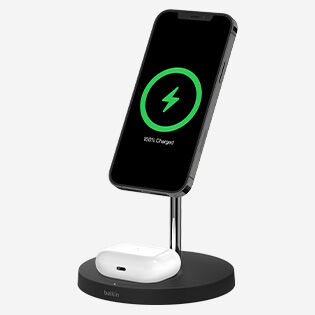
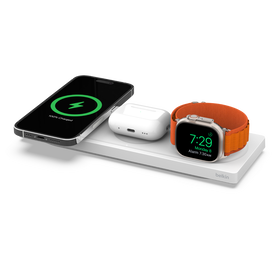
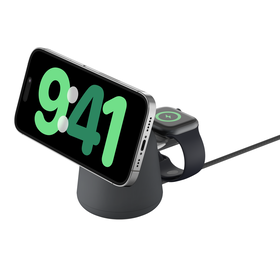
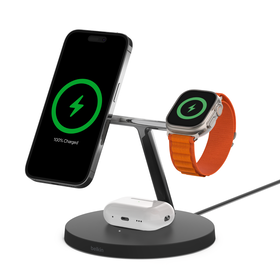
Quick charging for your iPhone, Apple Watch and AirPods
with our latest 3-in-1 wireless charging stand.

Save up to $60 on responsibly made tech.
 Extra 40% off Certified Refurbished. Shop now.
UHD 4K@60Hz resolution.

Pre-order our iPhone Mount with MagSafe for Apple TV 4K.


***Limit one free gift per transaction.
**CA resident loans made or arranged pursuant to a California Financing Law license.
*based off of NPD and Stackline data from 2020-2023; data represents 3rd party and non-private label market share at major Brick & Mortar retailers in North America, as well as Amazon.com US

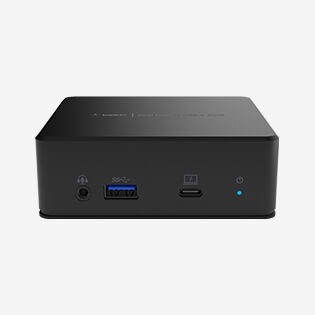
_FrontRaised_WEB.png?sw=280&sh=280&sm=fit "USB-C 6-in-1 Core GaN Dock 130W,")
_MPP242_MagneticWirelessPowerBank5K+Stand_FPK_BLK_Shot1_Web.png?sw=280&sh=280&sm=fit "Magnetic Wireless Power Bank 5K + Stand, Black")